Business Continuity
Keep your business continuity management register in one place — what each critical activity can tolerate, the plans that respond when it is disrupted, and the exercises that show those plans work.
ISO 22301 (the international standard for business continuity management) expects an organisation to understand which activities matter most, to plan how it keeps or restores them, and to rehearse those plans — the operational part of the standard, clause 8. This page is the register for that work, a BCMS (business continuity management system) record set in three parts: impact analyses, continuity plans and exercises. Each record can be linked to the framework controls it evidences, so an auditor can follow a requirement straight to the analysis, plan or exercise behind it.
Four terms carry the analysis. A BIA (business impact analysis) looks at one activity and asks what a disruption would cost. RTO (recovery time objective) is how quickly the activity must be running again. RPO (recovery point objective) is how much data, measured as time, you can afford to lose. MTPD (maximum tolerable period of disruption) is the point beyond which the outage becomes unacceptable — so it can never be shorter than the RTO.
Who uses it
| Role | Read the register | Add and edit records | Delete records |
|---|---|---|---|
| Viewer | Yes | No — no Add or Edit buttons appear |
No |
| Contributor | Yes | Yes, including exercise corrective actions and the status field | No — the Delete action is not shown |
| Manager | Yes | Yes | Yes |
| Admin | Yes | Yes | Yes |
Business Continuity sits in the Governance menu
and belongs to the Compliance module. When that module is not provisioned
for your organisation, the menu entry is hidden. Linking a record to a
framework control is done from the control itself and needs the right to
edit compliance mappings, which Manager and Admin hold.
What's on this screen
The page is headed Business Continuity, with a one-line reminder of
what the register holds. Below it, three tabs split the register; the one you
choose is kept in the address (/continuity?tab=plans), so a link or
a browser refresh reopens the same tab. Every tab has the same layout: a filter
row, a table and, if your role allows, a button to add a record.
-
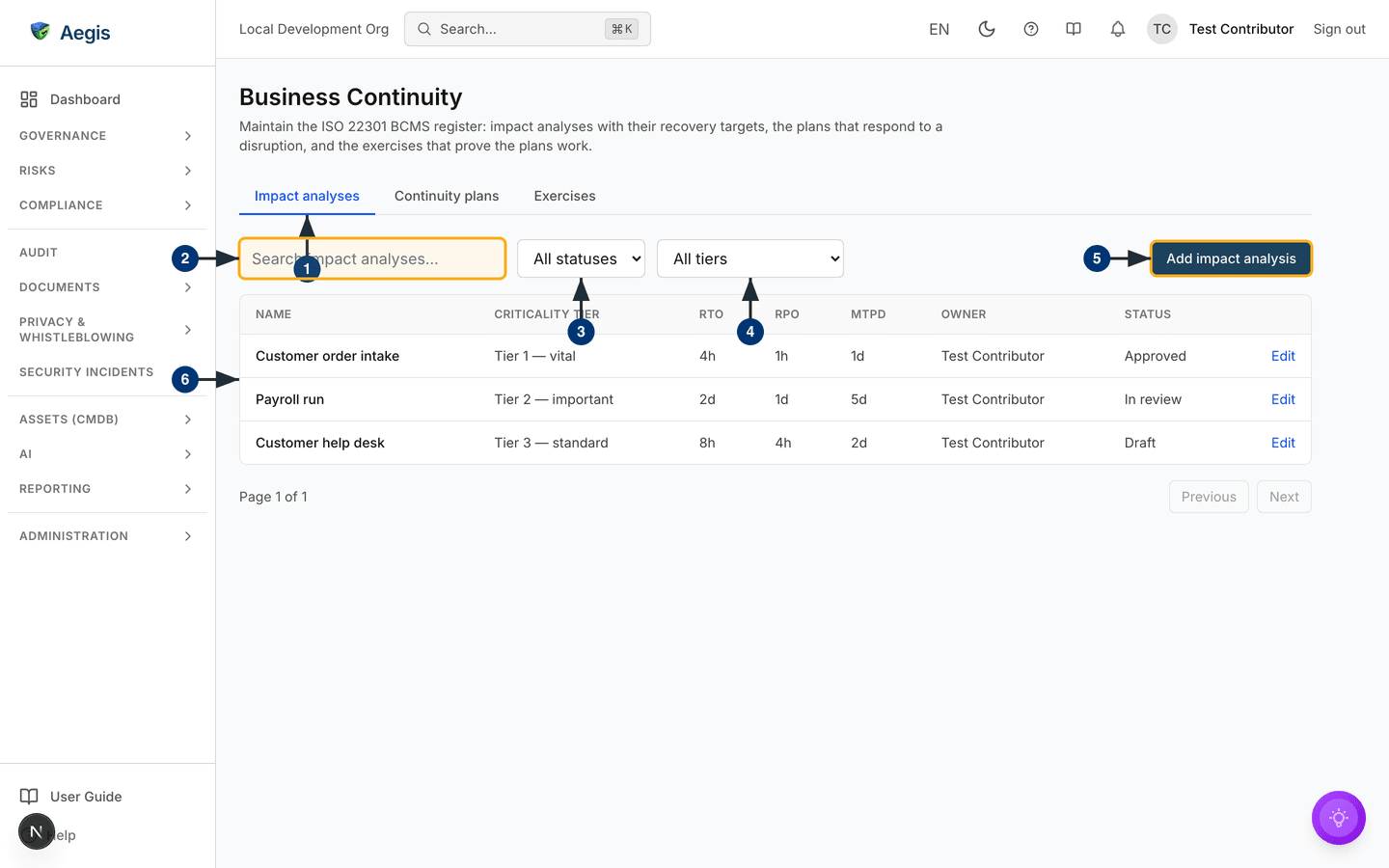
The tabs —
Impact analyses,Continuity plansandExercises.Impact analysesopens first. -
Search impact analyses...narrows the table by name or description as you type. Each tab has its own search box. -
All statusesrestricts the table to one status:Draft,In review,ApprovedorRetired. -
All tiersrestricts it to one criticality tier, fromTier 1 — vitaltoTier 4 — deferrable. -
Add impact analysisopens the create form. It appears only if your role can create records. -
The table lists each analysis with its
Criticality tier,RTO,RPO,MTPD,OwnerandStatus. Select a name to open the detail drawer;EditandDeletesit at the end of the row according to your role. The table pages withPreviousandNext.
The detail drawer shows everything recorded for the record, and ends with
Linked framework controls — the controls this record evidences,
each a link to the control in
Compliance Frameworks. When nothing is
linked yet, the drawer says so.
Record an impact analysis
Record one analysis per activity or process — payroll, order intake, the customer help desk — rather than one for the whole organisation. The recovery targets are only useful when they describe something specific.
-
On the
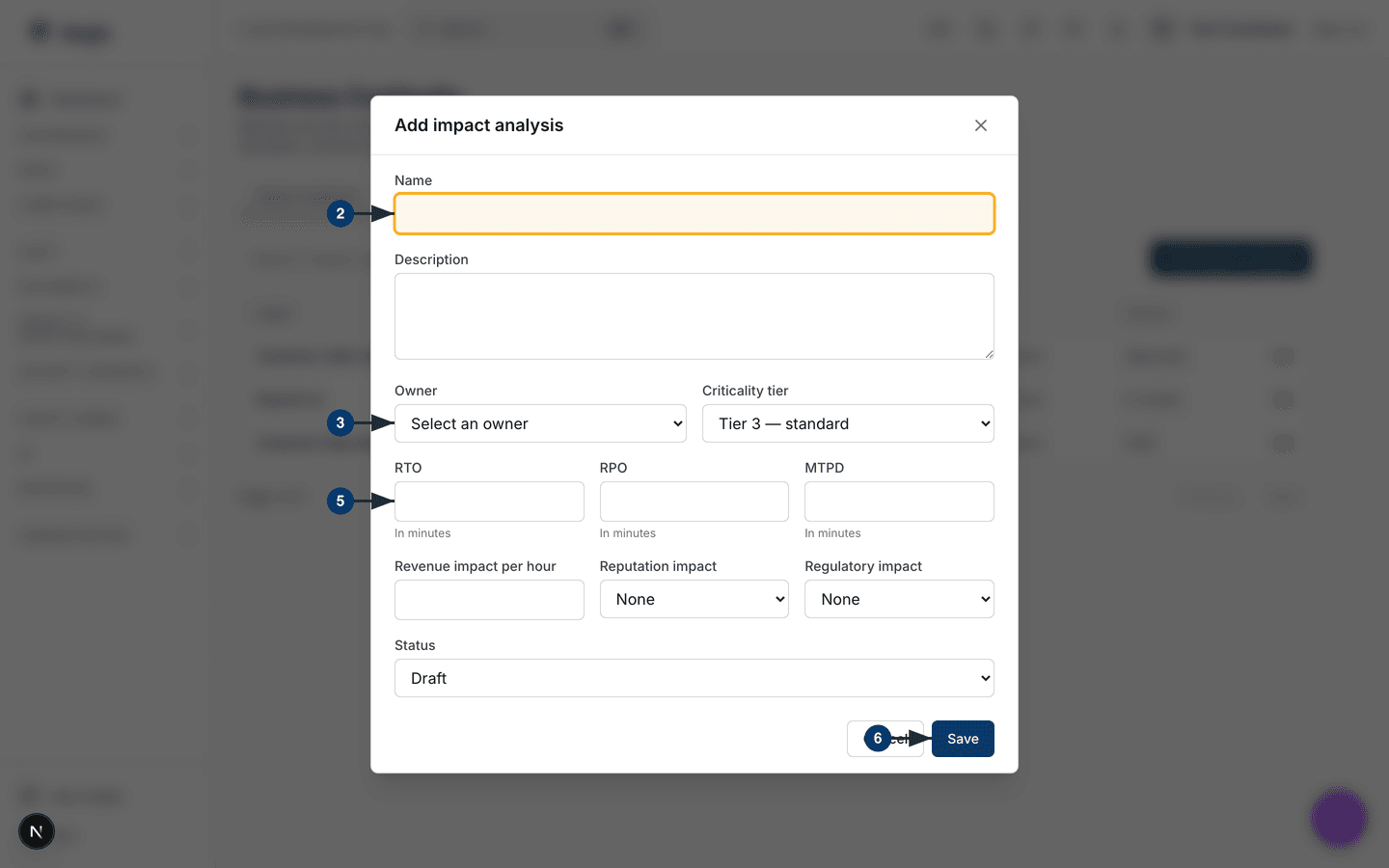
Impact analysestab, selectAdd impact analysis. A form of the same name opens. -
Enter a
Nameand, optionally, aDescription. The search box looks in both. -
Pick an
Owner— the person accountable for the activity. The form will not save without one. -
Choose the
Criticality tier:Tier 1 — vital,Tier 2 — important,Tier 3 — standardorTier 4 — deferrable. -
Enter
RTO,RPOandMTPDin minutes. The hint under each field shows the value as hours or days as you type. If the MTPD is shorter than the RTO, the form stops you withMTPD must be greater than or equal to RTO. -
Add the
Revenue impact per hourand rate theReputation impactandRegulatory impactfromNonetoCritical. Set theStatusand selectSave. The form closes, a confirmation appears and the new row is in the table.
The detail drawer can also list Impact categories — a level per
type of impact — and Notes. These are shown when a record carries
them, for example one created through the API; the form itself does not edit
them.
Write a continuity plan
-
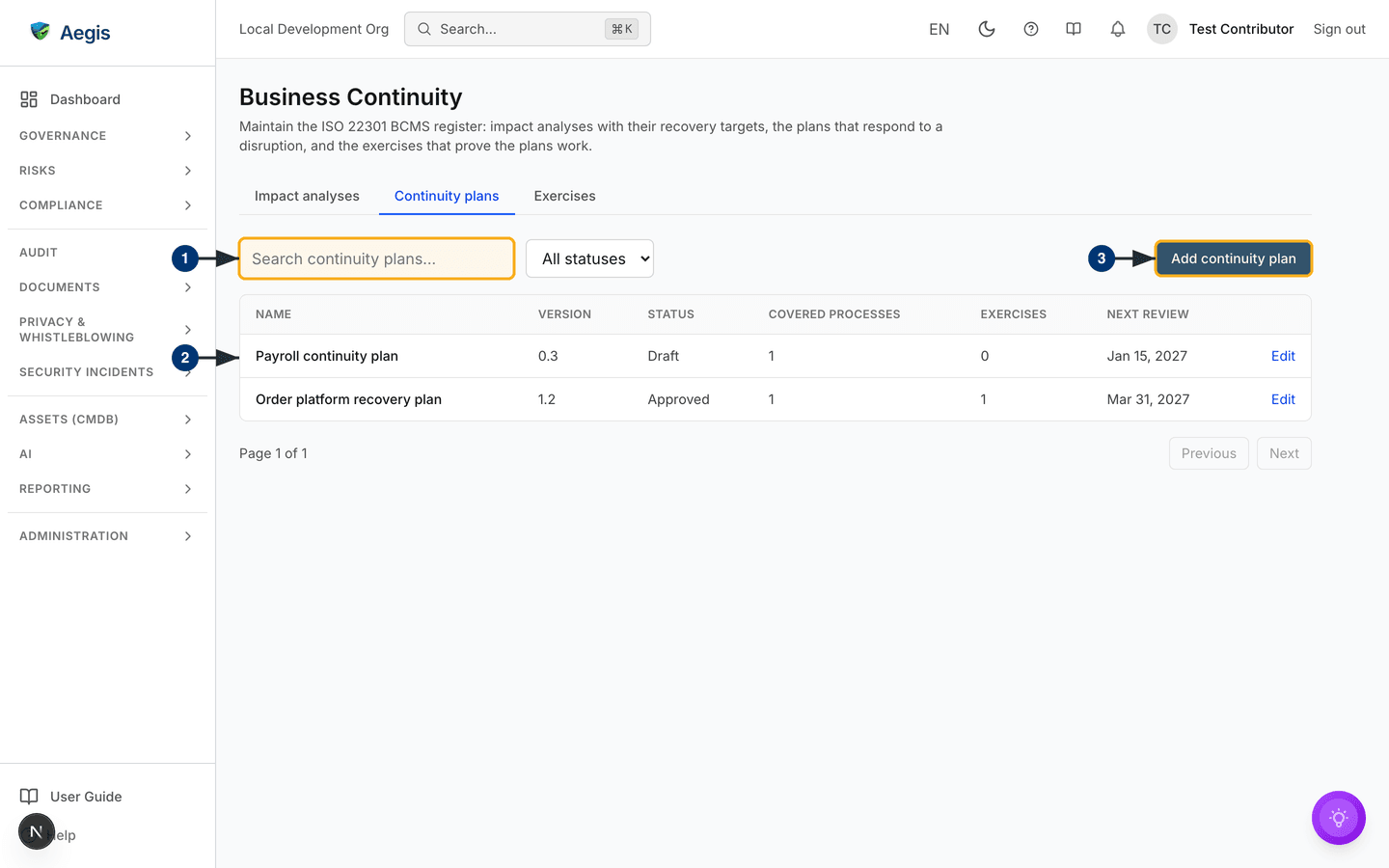
Open the
Continuity planstab. Its filter row hasSearch continuity plans...and a status filter. -
The table shows each plan's
Version,Status,Next review, the number ofCovered processesand the number ofExercisesrun against it. -
Select
Add continuity plan. Give the plan aNameand anOwner, describe itsScope, and set itsVersion,StatusandNext reviewdate. -
Under
Covered processes, choose the impact analyses this plan protects. This is what ties the plan back to the recovery targets it must meet. -
Write the
Activation criteria(what triggers the plan), theRecovery procedures(the steps to restore the activity) and theCommunications plan(who is told what, and when). All three accept Markdown. SelectSave.
A plan's detail drawer also shows Roles and responsibilities — who
holds which role during an incident, and how to reach them — when the plan
carries that list.
Plan and record an exercise
An exercise is a rehearsal of a plan. You schedule it first and fill in the result once it has taken place, so the same record covers both the plan and the proof.
-
Open the
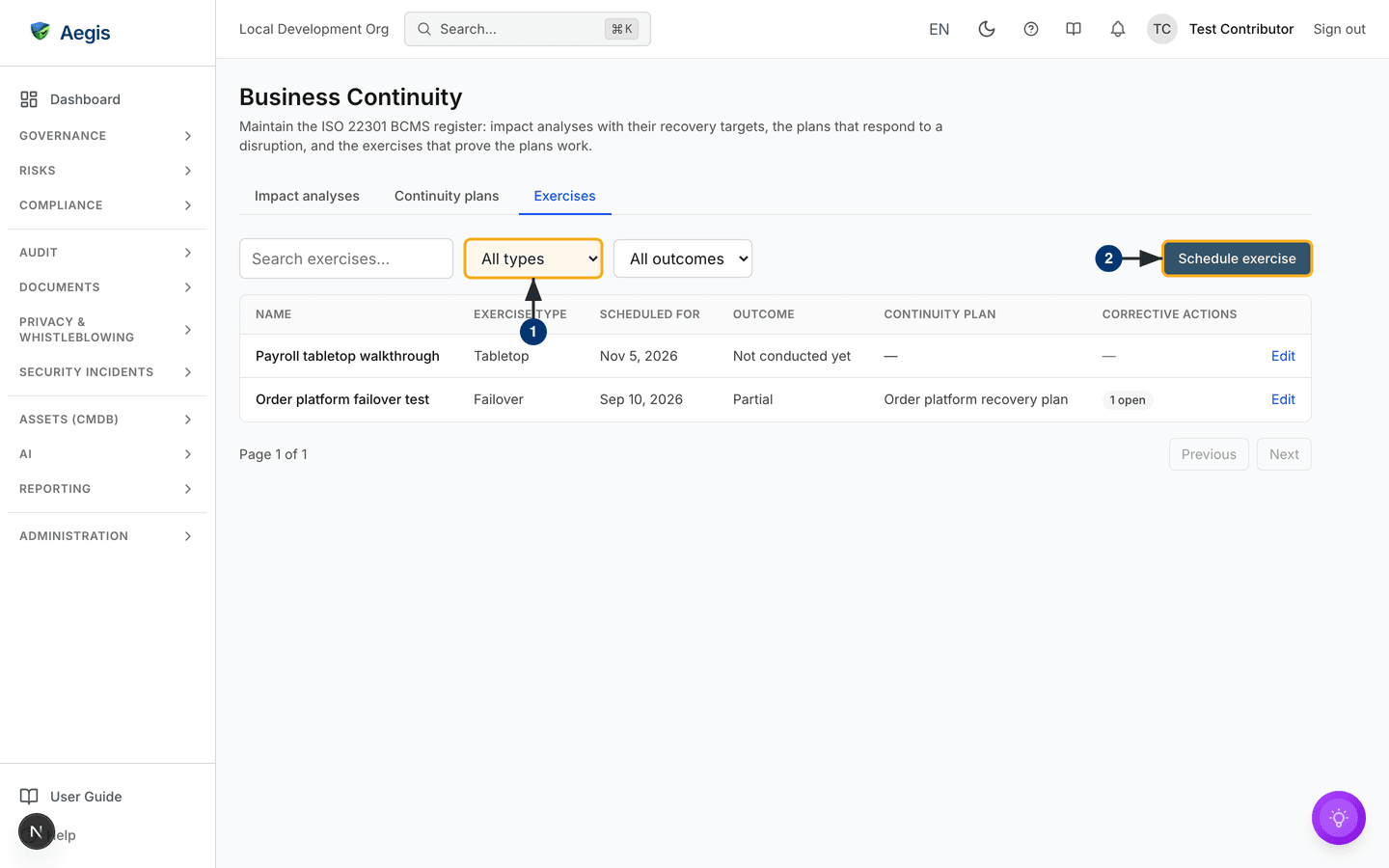
Exercisestab. Filter byAll typesorAll outcomes, or search by name. -
Select
Schedule exercise. Enter aName, choose theExercise type—Tabletop,Simulation,FailoverorWalkthrough— and theContinuity planit tests, and set theScheduled fordate. The date is required. -
After the exercise, select
Editon its row. Fill inConducted on,Duration (minutes), theOutcome—Passed,PartialorFailed— and theFindings, then save. Until then the outcome readsNot conducted yet. -
The
Corrective actionscolumn counts the follow-up actions still open and flags any that are overdue.
Follow up with corrective actions
An exercise that did not fully pass needs a documented response. Open the
exercise from its name; the drawer shows its details,
Participants where recorded, the Findings and a
Corrective actions section.
-
The
Corrective actionstable lists each action with its owner, due date (markedOverduewhen it has passed), status and any linked non-conformity. -
Select
Add action. Describe theAction, add optionalDetails, pick anOwnerand aDue date, and selectAdd. -
Move the action through
Open,In progressandDone. To mark itVerified, first fill inEffectiveness verification— the evidence that the action worked. The form will not acceptVerifiedwithout it. - The drawer ends with
Linked framework controls.
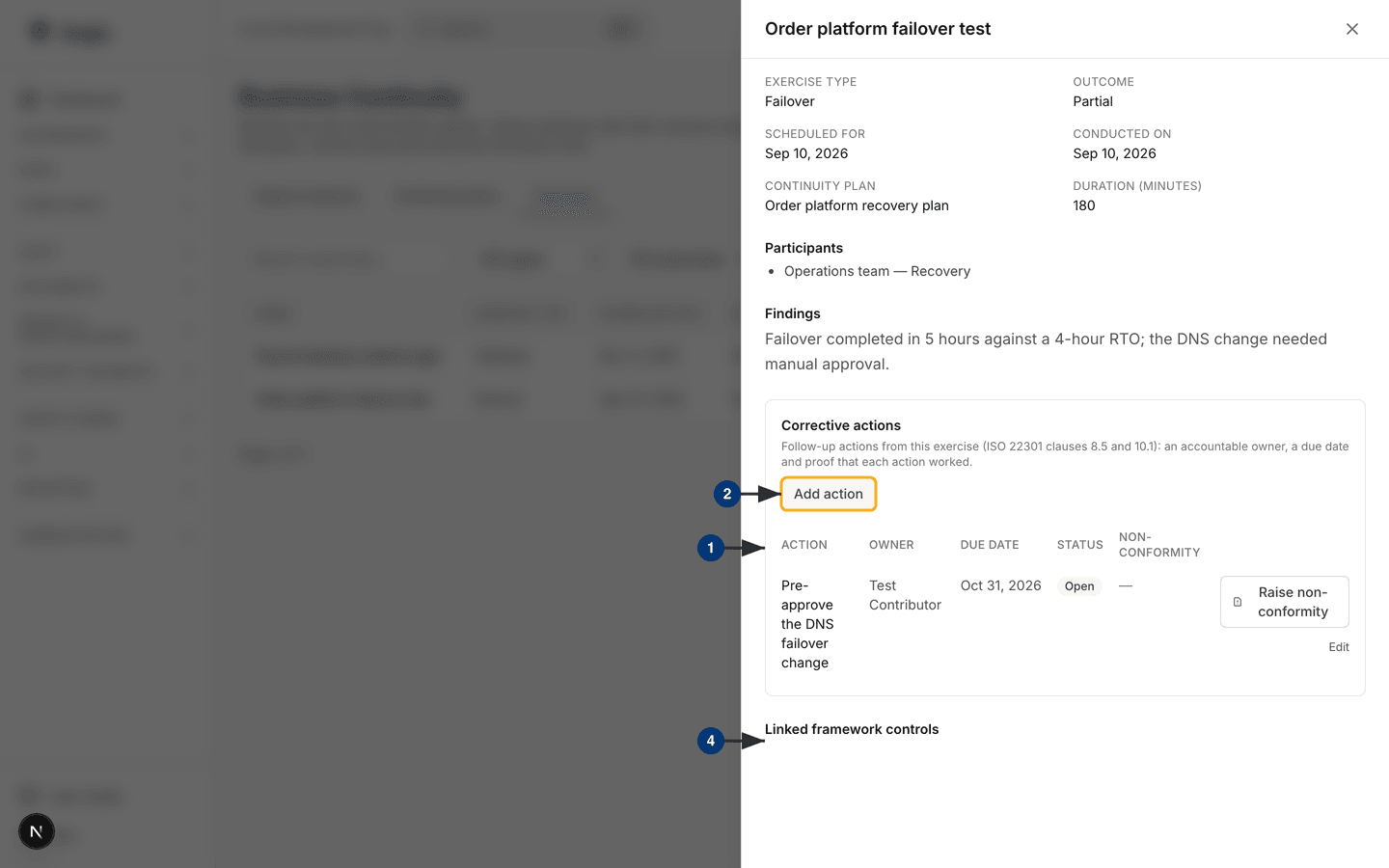
When an exercise ends Partial or Failed and has
neither a corrective action nor a non-conformity, the drawer shows
Corrective action required with a button to raise a
non-conformity. You can also raise one from a single action; it is linked
back to the action and appears in
Non-Conformities.
Statuses
Impact analyses and continuity plans share four statuses. You set the status in the form; Aegis does not run an approval workflow for these records.
| Status | Meaning |
|---|---|
Draft |
Being written. New records start here. |
In review |
Complete and waiting for the owner or a reviewer to agree it. |
Approved |
Agreed and in force. |
Retired |
No longer in use, but kept in the register as history. |
Exercises have no status of their own. Their lifecycle is the scheduled date, the conducted date and the outcome.
Link controls
Links are made from the control's side. In
Compliance Frameworks, open a control —
for example an ISO 22301 clause 8 control — and use its mapping panel. The
Impact analyses, Continuity plans and
Exercises tabs there let a Manager or Admin search the register and
link a record. Once linked, the record appears under
Linked framework controls in its drawer, and the control's own link
opens this page on the right tab with that record selected.
Retire or delete a record
-
To take a record out of use, edit it and set
StatustoRetired. It stays in the register, readable by everyone. Contributors can do this. -
To remove a record, a Manager or Admin selects
Deleteon its row. A confirmation names the record; confirm to remove it from the register. Corrective actions are deleted the same way from the exercise drawer.
Tips and limits
- Prefer retiring to deleting. A retired plan with its exercises is the history an auditor will ask to see.
- Enter recovery targets in minutes; the table shows them rounded to minutes, hours or days.
- The register records your analysis and plans. Aegis does not run failovers or measure actual recovery times — the exercise outcome and findings are what your team records.
-
Review dates are shown, not enforced: keep
Next reviewcurrent so an expired plan is visible in the table.
Where this connects
- Non-Conformities — where exercise shortfalls are raised and tracked to closure.
- Management Reviews — the periodic leadership review of your management system; bring exercise outcomes and open corrective actions to it.
- Control Mapping — how one record can evidence controls across several frameworks.
- Compliance Frameworks — the controls these records are linked to.